

Have you ever tried to open an email attachment in Microsoft Outlook only to see this error message?

"Cannot create file: filename.xlsx. Right-click the folder you want to create the file in, and then click Properties on the shortcut menu to check your permissions for the folder."
If so, you are not alone. This is a common issue experienced by Microsoft Outlook 2007, 2010, 2013, and 2016 users on Windows 7. As a result, you cannot open or save any email attachments. This guide will walk you through the fix in just a few simple steps using the Registry Editor (regedit).
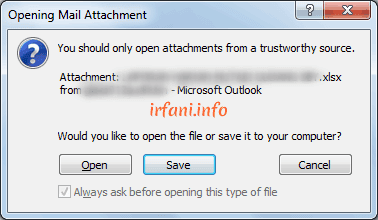
What Causes the "Cannot Create File" Error in Outlook?
This error occurs because the temporary folder used by Microsoft Outlook to temporarily store email attachments is full or has an invalid path. Once the folder reaches its limit (usually after 99 files with the same name), Outlook can no longer create new files and displays this error.
Solution: Change Temporary Folder Location via Regedit
The most effective solution is to change the Outlook temporary folder location through the Registry Editor. Follow these steps:
Step 1 — Open Registry Editor (Regedit)
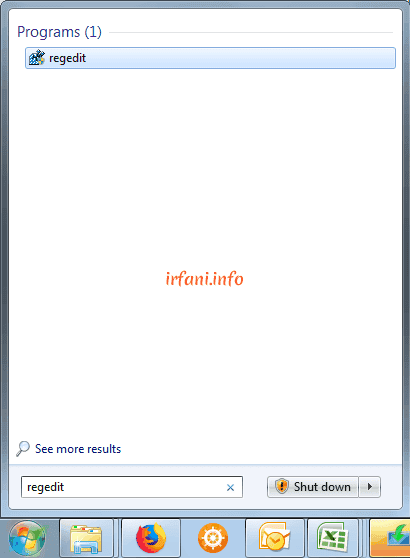
Click Start, then in the Search programs and files box, type regedit. Click the regedit program that appears in search results.
Step 2 — Navigate to the Outlook Security Key
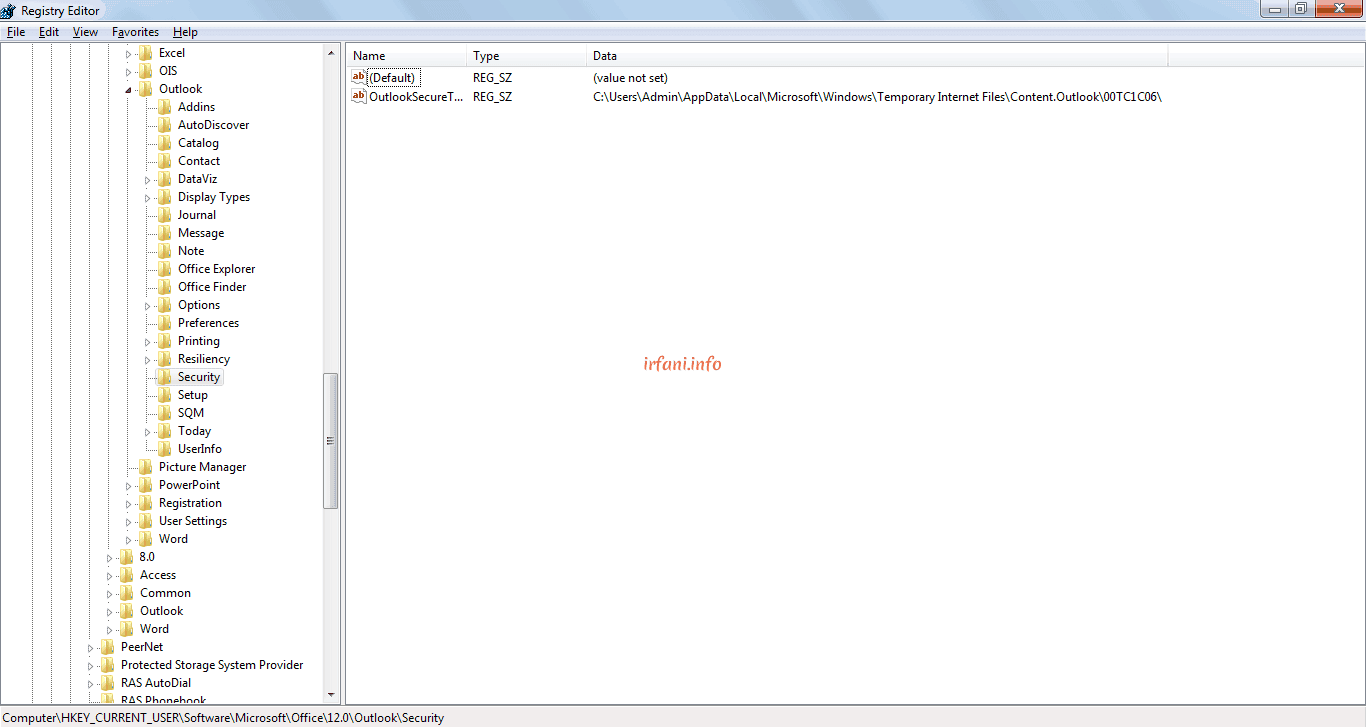
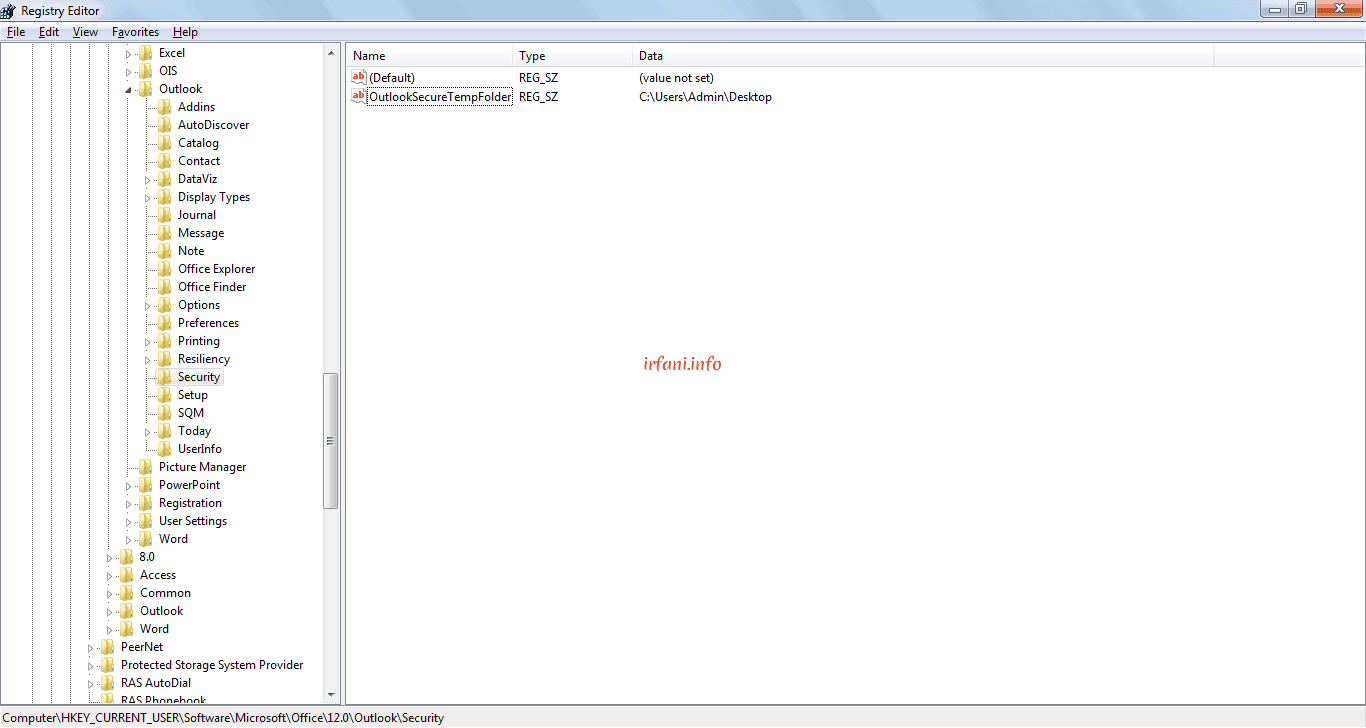
In the Registry Editor, navigate to:
HKEY_CURRENT_USER\Software\Microsoft\Office\<version>\Outlook\Security
Replace <version> with your Microsoft Office version number:
| Outlook Version | Version Number |
| Outlook 2016 | 16.0 |
| Outlook 2013 | 15.0 |
| Outlook 2010 | 14.0 |
| Outlook 2007 | 12.0 |
| Outlook 2003 | 11.0 |
| Outlook XP | 10.0 |
Step 3 — Edit OutlookSecureTempFolder
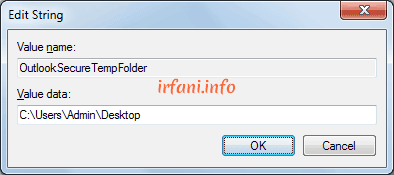
In the right panel, find and double-click OutlookSecureTempFolder. The Edit String window will open. In the Value data field, enter a new valid folder path:
C:\Users\Admin\Desktop
Click OK to save changes.
Step 4 — Restart Microsoft Outlook
Fully close Microsoft Outlook and reopen it. Try opening an email attachment again — the "Cannot Create File" error should no longer appear. ✅
Additional Tips
- Create a dedicated folder for Outlook temporary files such as C:\OutlookTemp for easier management.
- Avoid using the Desktop as a permanent location as it may become cluttered with temporary files.
- If the error persists try deleting all files inside the old temporary folder before changing its location.
Conclusion
The "Cannot Create File" error in Microsoft Outlook is caused by a full or invalid temporary folder. The fix is straightforward — change the OutlookSecureTempFolder value in the Registry Editor to a new valid path. This works for Outlook 2007, 2010, 2013, and 2016 on Windows 7. Hope this helps! 😊
FAQ
Q: What causes the "Cannot Create File" error in Microsoft Outlook?
A: The error is caused by Outlook's temporary folder being full (usually after 99 files with the same name) or having an invalid path.
Q: Does this fix work for Outlook 2016?
A: Yes — just change the version number in the registry path to 16.0.
Q: Is it safe to edit the Windows registry?
A: Yes, as long as you only modify the specific value mentioned in this guide.
Q: What if OutlookSecureTempFolder is not found in the registry?
A: Right-click in the right panel, select New → String Value, name it OutlookSecureTempFolder, then set the value to your desired folder path.