
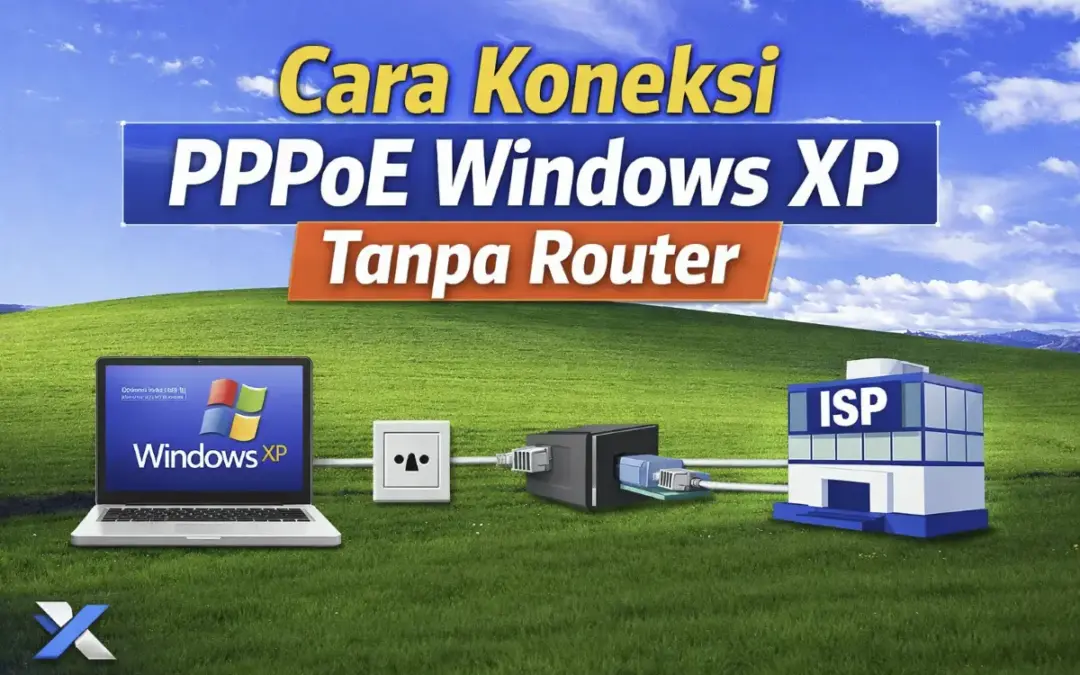
How to Connect PPPoE on Windows XP Without a Router — Complete Guide
Is your internet connection slow or is the bandwidth not matching your subscribed plan? One of the best ways to verify your actual internet speed is by connecting via PPPoE directly from your Windows XP PC to your ISP — without a router in between.
This method allows you to measure the real internet speed from your ISP without any router interference. This guide will walk you through every step from preparation to a successful connection. 🚀
⚙️ Requirements
Before you begin, make sure you have:
- An Ethernet cable (RJ45) connected directly from the ISP/wall jack to your PC
- A PC or Laptop running Windows XP
- Your PPPoE username and password from your ISP (contact ISP customer service if needed)
🔌 Connection Topology
Here is the connection diagram for this setup:
ISP <--> Wall Jack <==> PC / Laptop
Legend: <--> = ISP transmission media | <==> = Ethernet cable (RJ45)
🚀 Step-by-Step PPPoE Setup on Windows XP
Step 1 — Connect the Ethernet Cable to Your PC
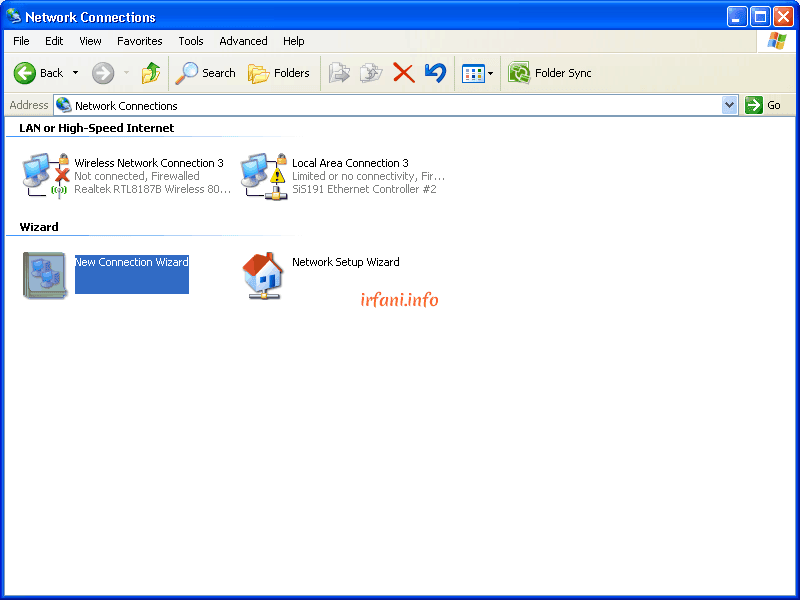
Unplug the cable from your router and connect it directly to your PC/laptop's LAN port. Make sure the Ethernet is enabled — no red X icon (❌), and the indicator should show an exclamation mark (⚠️) indicating the cable is connected but not yet authenticated.

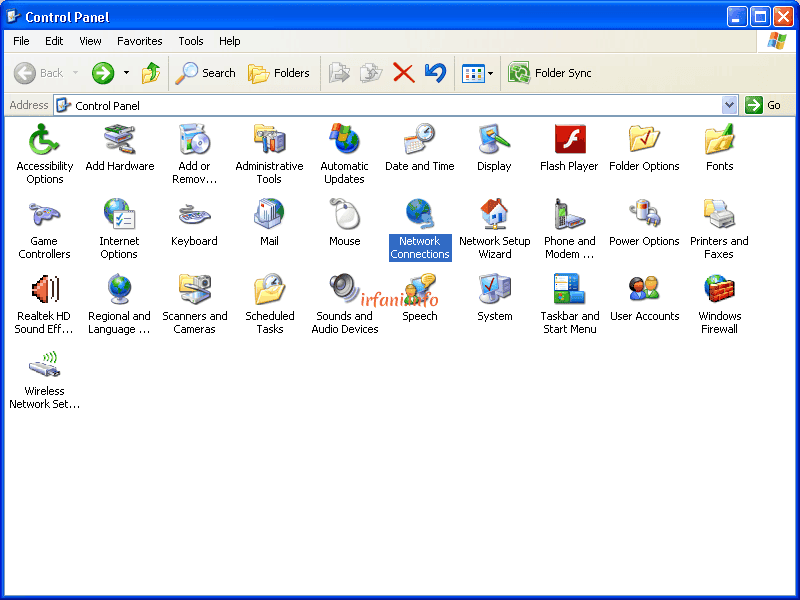
Step 2 — Open Network Connections
Go to Control Panel → click Network Connections
Step 3 — Launch the New Connection Wizard
In the left panel, click Create a new connection to open the New Connection Wizard
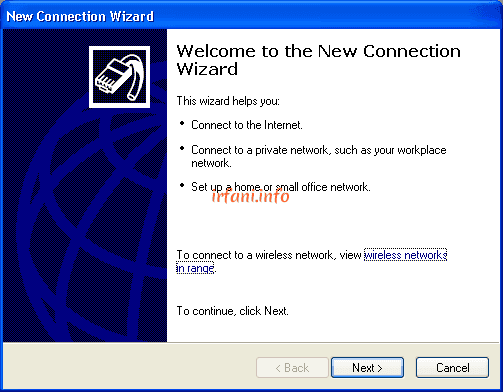
Step 4 — Select Connection Type
Follow these steps in the wizard:
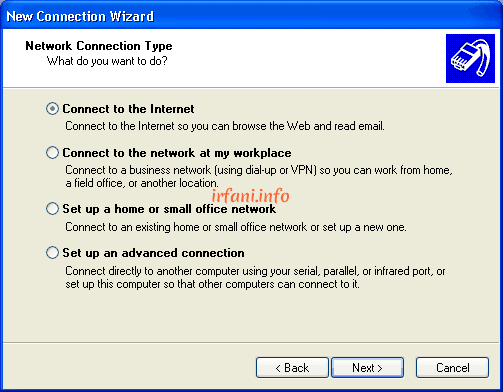
- Click Next on the first page
- Select "Connect to the Internet" → click Next
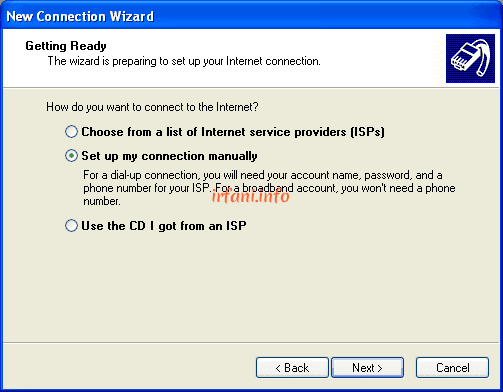
- Select "Set up my connection manually" → click Next
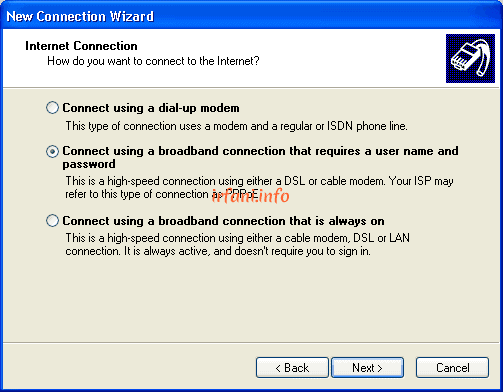
- Select "Connect using a broadband connection that requires a user name and password" → click Next
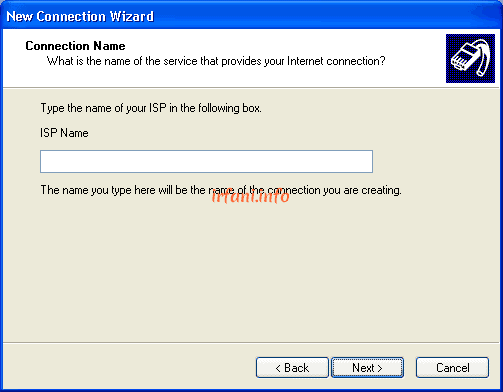
- Enter your ISP Name (any name, e.g. MyISP) → click Next.
Step 5 — Enter Username and Password
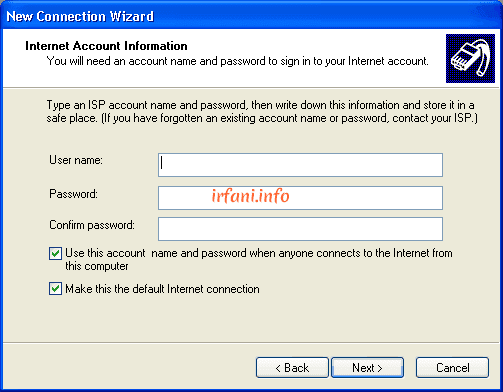
Enter your PPPoE username and password provided by your ISP, then click Next. Make sure there are no typos as the password is case-sensitive.
Step 6 — Create a Desktop Shortcut
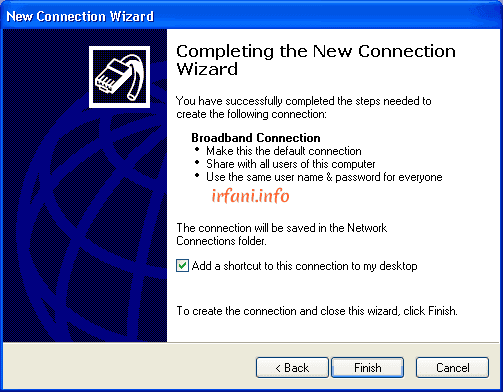
Check "Add a shortcut to this connection to my desktop" for easy access, then click Finish.
Step 7 — Connect to the Internet
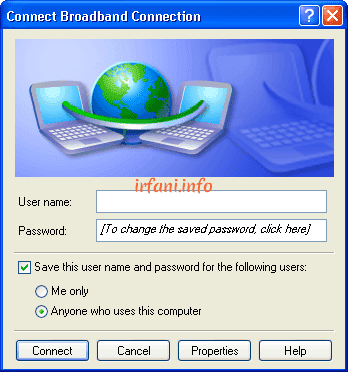
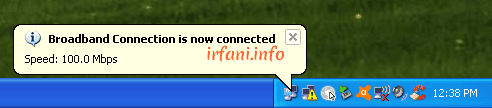
Double-click the PPPoE shortcut on your desktop → click Connect. If your credentials are correct, the connection status will change to Connected. ✅.
Step 8 — Test Internet Speed
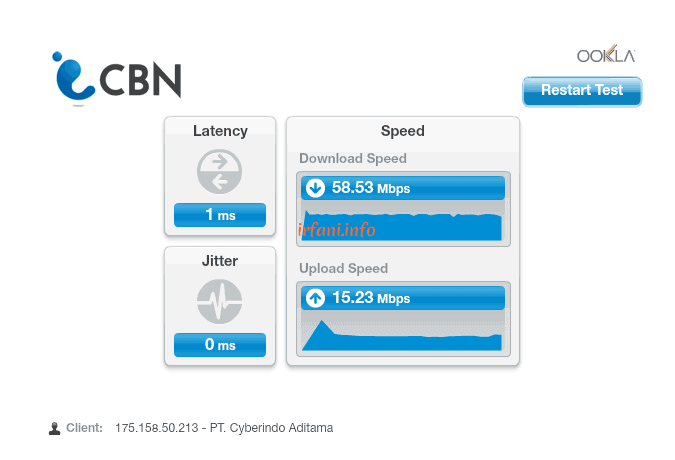
Once connected, run a speed test to verify your bandwidth. Visit fast.com or speedtest.net in your browser. Note down the download and upload speed results.
Step 9 — Disconnect When Done
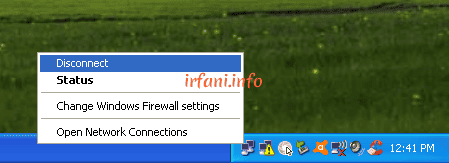
When finished, right-click the connection icon in the system tray → select Disconnect. Reconnect the cable to your router as usual.
❗ Troubleshooting
If you encounter any issues, try these steps before contacting your ISP:
|
Problem |
Solution |
|
Connection failed / Error 691 |
Check your username and password — ensure no typos and caps lock is off |
|
Connection failed / Error 678 |
Check the ethernet cable, try a different cable or LAN port |
|
Slow internet after connecting |
Restart the ISP modem, wait 2-3 minutes, then run the speed test again |
|
Bandwidth not matching plan |
Run the speed test 2-3 times at different times, then contact ISP if still inconsistent |
|
Ethernet not detected |
Make sure the LAN card driver is properly installed in Device Manager |
✅ Conclusion
By connecting via PPPoE directly from Windows XP to your ISP without a router, you can:
- Measure the actual internet speed from your ISP without router interference
- Compare router performance against a direct connection
- Accurately troubleshoot network issues
Hope this guide is helpful and your internet runs smoothly! 😊
FAQ
Q: Can this method be used on Windows 7 or Windows 10?
A: Yes! The concept is the same. On Windows 7/10, go to Network and Sharing Center → Set up a new connection → Broadband (PPPoE). The steps are slightly different but the idea is identical.
Q: Is a direct PPPoE connection faster than using a router?
A: Not necessarily faster, but it gives a more accurate reading of your actual ISP speed without any router-related factors affecting the result.
Q: Is the PPPoE username and password the same as my WiFi password?
A: No. The PPPoE username and password are credentials provided by your ISP for internet authentication, separate from your WiFi password which you set yourself.
Q: What should I do after finishing the test?
A: Disconnect the PPPoE connection, unplug the cable from your PC/laptop, and reconnect it to your router so other devices can use the internet again.